Win10 AeroLite主题实现活动与非活动窗口边框差异化配色
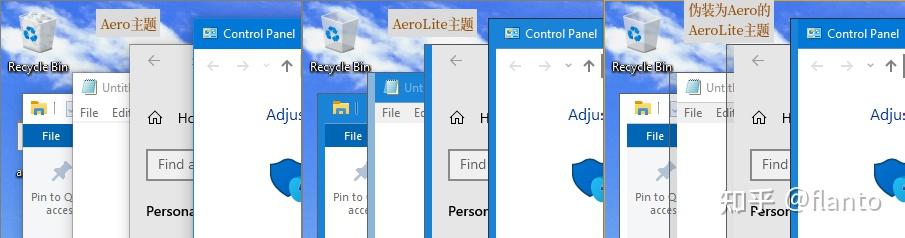
一直在 Win10 上用 AeroLite 主题,因为默认的 Aero 主题没有明确的窗口边框,即使开启窗口阴影,边框也是模糊的,左侧、右侧和下侧阴影属于本窗口,但标题栏上方的阴影属于下层窗口,如果有多个窗口重叠,就难以精确选择窗口。Win10 的自带主题中,只有 AeroLite 主题提供 Win8 风格的清晰窗口边框,但 AeroLite 主题的缺点,就在于活动与非活动窗口的边框和标题栏颜色相近,都是主题色(accent color,即 .theme 文件里的 ColorizationColor,默认蓝色),导致多个窗口并排时,难以辨认活动窗口与非活动窗口,结果就是 Alt+F4 容易关错窗口,而且向某个窗口输入文字也可能搞错焦点。
但最近安装 WinCenterTitle 后,发现即使是 AeroLite 主题,非活动窗口边框也会变为白色,不同于活动窗口的边框颜色。仔细读了 WinCenterTitle 的 README 之后,才意识要使活动窗口的边框颜色区别于非活动窗口,不仅需要勾选“在标题栏和窗口边框显示主题色”,还要求主题名称为“aero”,否则所有窗口边框和标题栏都是同一个颜色。那如果把 aerolite 主题的相关文件名强行改成 aero,不就可以实现差异化配色吗?事实正是如此,只不过默认的 C:\Windows\Resources\Themes\aero\aero.msstyles 文件名称禁止修改,那就可以把主题文件夹复制之后再魔改名称:
第一步:进入 C:\Windows\Resources\Themes\ ,复制 aero 文件夹,粘贴后更改名称,比如改为 aero-test 。粘贴过程中跳出的管理员权限对话框一律点击确认,仍然无法复制的点击跳过(可能是 VSCache 文件夹内的文件)。
第二步:进入新粘贴的 aero-test 文件夹,将 aero.msstyles 以及 en-US\aero.msstyles.mui(示例路径)修改为其他名称,比如 aero_real.msstyles 和 en-US\aero_real.msstyles.mui 。之后将 aerolite.msstyles 和 en-US\aerolite.msstyles.mui 分别修改为 aero.msstyles 和 en-US\aero.msstyles.mui 。注意两个文件和文件夹名称都修改为相同的“aero”。
第三步:将原本的 C:\Windows\Resources\Themes\aero\ 文件夹修改为其他名称,比如 C:\Windows\Resources\Themes\aero_orig\ ,再将魔改的 C:\Windows\Resources\Themes\aero-test\ 改名为 C:\Windows\Resources\Themes\aero\ 。
第四步:确保“设置”-“个性化”-“颜色”-“在标题栏和窗口边框显示主题色”已选中,重启电脑后就可以实现 aerolite 主题下的活动与非活动窗口边框差异化配色。如果仅重新应用主题或重新登录而不重启,系统可能卡出 win9x 风格的窗口边框,或者黑屏死机。
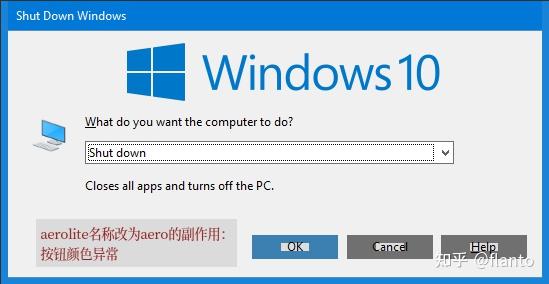
当然,这样魔改的缺点,在于按钮颜色不正常。如果用传统方法应用 AeroLite 主题,即修改 .theme 文件,将 [VisualStyles] 的 Path 修改为 AeroLite.msstyles 的路径,在此基础上同时运行 WinCenterTitle,就可以避免这个问题,因为 WinCenterTitle 没有修改系统自带的主题文件,而是将当前主题伪装成aero,以保持默认的窗口边框颜色效果。
附上 WinCenterTitle 作者在 README 内的相关解释:
Make a copy of aero folder and aero.theme from C:\Windows\Resources\Themes in the same folder. I called mine test.theme and folder test. Rename aero.msstyles to test.msstyles from aero folder, and aero.msstyles.mui to test.msstyles.mui from aero\en-US folder... Apply the new theme from Personalization\Themes in Settings. Notice how the title bar text is centered in Explorer.
(内容大意:将 C:\Windows\Resources\Themes\aero 文件夹复制为 C:\Windows\Resources\Themes\test,并将 test 文件夹内部的 aero.msstyles、aero.msstyles.mui 文件重命名为 test.msstyles 和 test.msstyles.mui,之后应用此主题)
There is one issue though: the title bars are now colored, instead of default white/black. This is because DWM contains a check for the name of the msstyles file. If it is called aero.msstyles, title bars will be painted white/black, depending on whether you are on light/dark theme in Settings. If the msstyles file has any other name (like in our case), the title bar will have whatever color the msstyles file specifies, or in the case of this renamed aero.msstyles, it will use your accent color no matter if you have 'Show accent color on the following surfaces: Title bars and window borders' in Personalization\Colors in Settings checked or not.
(内容大意:应用新主题后,窗口标题栏的背景色不再是白色或黑色,这是因为 DWM 会检测 .msstyles 文件的名称。只有当文件名为 aero.msstyles 时,标题栏的背景色才是白色(浅色主题)或黑色(暗色主题)。如果 .msstyle 文件是其他名称,标题栏就以 .msstyle 文件指定的默认颜色、或者自己设定的“主题色”为背景色,无论“设置”中是否已勾选“在标题栏和窗口边框中显示主题色”)
To override this behavior, WinCenterTitle has a small code block that identifies the in memory flag of DWM that holds the status of whether the theme is called aero.msstyles and overrides its value to 1, meaning that the theme is called aero.msstyles, despite its actual name, and forcing DWM to render the title bars using the default behavior.
(内容大意:为避免窗口标题栏将主题色作为背景颜色,WinCenterTitle 增加了一个小功能,使 DWM 始终将当前的 .msstyle 文件名识别为 aero.msstyles,以保持默认的标题栏颜色配置)