linux下用傲腾作为缓存加速机械硬盘读写
之前不是用 p330tiny 装了台 All In One NAS 吗(参考从零开始搭一台精致的 All In One NAS - 知乎), 因为现在固态硬盘价格高企的原因第二个 nvme 硬盘位一直没有利用起来, 最近突然想起来去年年初十几块钱买了两块傲腾 M10 16G, 刚好可以拿来加速 NAS 里面的 2T 机械, 于是折腾了几个小时配置了下, 效果很显著, 顺序读从 120 MB/s 提升到 600 MB/s, 4K 随机读从 400 KB/s 提升到 130MB/s.
这里为了数据安全采用的是写穿策略, 所以只对数据读取有加速对写入则没有提升, 有需要可以改成写回模式.
FIO
linux下没有类似于 DiskMark 这样的硬盘测速软件, 通常采用命令行工具 fio 进行硬盘读写速度测试, 安装直接 sudo apt install fio 就行. 为了尽可能接近 Diskmark 的测试结果, 这里定义了两个分别适用于固态硬盘和机械硬盘的配置文件 fio-sdd.conf 和 fio-hdd.conf.
[global]
ioengine=libaio
direct=1
group_reporting
runtime=60
time_based=1
size=512M
directory=/mnt/hdd/seagate/
filename=fio_mark_test.file

# group 0. SEQ1M Q8T1 顺序读
[SEQ1M-Q8T1]
rw=read
bs=1M
iodepth=8
numjobs=1
stonewall
# group 1. SEQ1M Q8T1 顺序写
[SEQ1M-Q8T1-Write]
rw=write
bs=1M
iodepth=8
numjobs=1
stonewall

# group 2. RAND4K Q32T16 随机读
[RND4K-Q32T16]
rw=randread
bs=4k
iodepth=32
numjobs=16
stonewall

# group 3. RAND4K Q32T16 随机写
[RND4K-Q32T16-Write]
rw=randwrite
bs=4k
iodepth=32
numjobs=16
stonewall

# group 4. RAND4K Q1T1 随机读
[RND4K-Q1T1]
rw=randread
bs=4k
iodepth=1
numjobs=1
stonewall

# group 5. RAND4K Q1T1 随机写
[RND4K-Q1T1-Write]
rw=randwrite
bs=4k
iodepth=1
stonewall
[global]
ioengine=libaio
direct=1
group_reporting
runtime=60
time_based=1
size=512M
directory= /mnt/hdd/seagate/ # 自行修改路径, 对应磁盘的任意位置都可以;
filename=fio_mark_test.file
# group 0. SEQ1M Q8T1 顺序读
[SEQ1M-Q8T1]
rw=read
bs=1M
iodepth=8
numjobs=1
stonewall
# group 1. SEQ1M Q8T1 顺序写
[SEQ1M-Q8T1-Write]
rw=write
bs=1M
iodepth=8
numjobs=1
stonewall
# group 2. RAND4K Q1T1 随机读
[RND4K-Q1T1]
rw=randread
bs=4k
iodepth=1
numjobs=1
stonewall
# group 3. RAND4K Q1T1 随机写
[RND4K-Q1T1-Write]
rw=randwrite
bs=4k
iodepth=1
numjobs=1
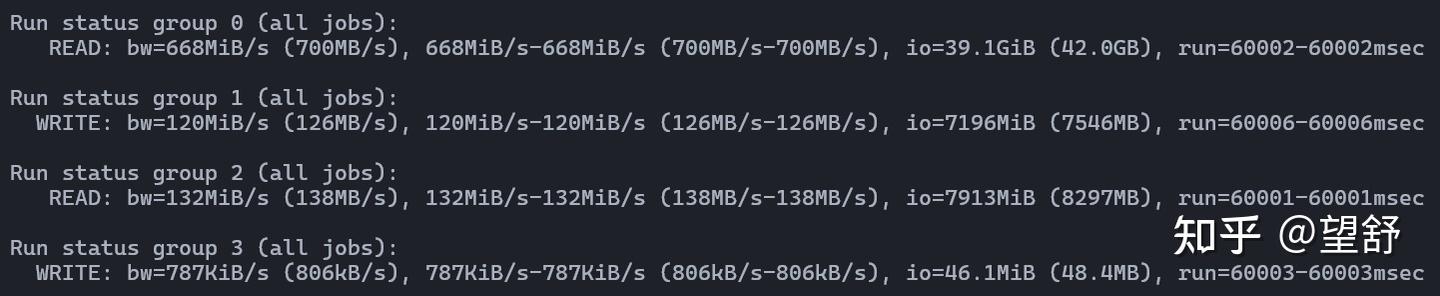
stonewall有了上面两个配置文件之后, 通过fio fio-hdd.conf就能对指定磁盘进行读写性能测试, 先简单看下主硬盘( SN530 )的测试结果(用的fdio-hdd.conf), 顺序读写 2000 MB/s 左右, 随机读 40MB/s 左右, 属于是老 nvme 固态的正常水平, 现在看确实有点弱鸡了.

CAS
大概看了下目前用固态加速机械的方案, 主要有 bccache, lvm cache 和 opencas, 其中前面两个方案要么需要完全格式化磁盘, 要么需要进行一些复杂的转换, 还是 opencas 比较好用, 在原本的磁盘设备 /dev/sda1基础上构建了虚拟接口/dev/cas1-1, 通过该接口访问文件都将能够得到opencas的加速, 关键是主硬盘的文件不会受到任何影响.

opencas 需要通过源码构建, 所以得手动编译下, 我在 mint 上测试没有任何问题.
git clone https://github.com/Open-CAS/open-cas-linux
cd open-cas-linux
git submodule update --init
./configure
make
sudo make install
执行完上述命令之后, 系统中就会出现包括casctl, casadm在内的命令了, 输入cas之后[Tab]下如果能看到对应的两个命令提示就说明安装成功.

这里假定硬件都已经安装好了, 直接通过执行下面的命令即可将指定硬盘配置为缓存盘, 其中的-d之后跟上自己的磁盘设备 ID 即可.
和 fstab 的配置类似, 如果直接指定为/dev/nvme0n1p1, 可能会因为更换磁盘位置使得识别错误, 这里的 ID 可以通过ls -l /dev/disk/by-id/ | grep nvme1n1p1得到, 将对应的/dev/disk/by-id/xxx填到下面命令的-d之后即可.
sudo casadm -S -i 1 -d /dev/disk/by-id/xxx -c wt之后是被加速的主硬盘, 对应的命令如下, 其中的磁盘设备文件同样由/dev/disk/by-id/xxx给出, 查询方式一致.
sudo casadm -A -i 1 -d /dev/disk/by-id/xxx需要注意的是, 执行上述命令的时候必须保证对应磁盘没有被占用, 否则执行会报错, 所以推荐先将磁盘对应的fstab删掉后重启再进行配置. 执行完上述命令之后, 就完成了对磁盘的加速, 这里简单测试了下效果.
顺序读翻了 4 倍, 随机读则是直接到了顶级 SSD 水准, 不得不说傲腾的 4K 随机读写性能还是太超模了, 如果不考虑写文件时可能引起的数据不同步问题也可以在上面的配置过程中将wt模式改为wb模式, 此时的写入操作也会通过缓存延迟写入到主硬盘中, 实现对写的加速, 这里为了保险起见用的wt模式, 也就是同时写主硬盘和缓存(其实如果只是加速读取的话直接wa也是可以的, 也就是只写入主硬盘).
但是现在还有个问题, 上面的所有配置都是临时的, 每次重新启动都需要重新执行命令. 所以更友好的方式是开机自动开启缓存加速. 这里采用的方案是casctl + systemd, 也就是把此处的命令转换成服务开机自行启动, 对此, 首先新建配置文件/etc/opencas/opencas.conf.
sudo mkdir -p /etc/opencas
sudo nano /etc/opencas/opencas.conf
并写入以下内容, 其实就是把上面命令的参数给写进来了, 同样把自己的/dev/disk/xxx填进去就行.
version=19.3.0
# Version tag has to be first line in this file
#
# Open CAS configuration file - for reference on syntax
# of this file please refer to appropriate documentation

# NOTES:
# 1) It is required to specify cache/core device using links in
# /dev/disk/by-id/, preferably those using device WWN if available:
#   /dev/disk/by-id/wwn-0x123456789abcdef0
# Referencing devices via /dev/sd* is prohibited because
# may result in cache misconfiguration after system reboot
# due to change(s) in drive order. It is allowed to use /dev/cas*-*
# as a device path.

## Caches configuration section
[caches]
## Cache ID     Cache device                            Cache mode      Extra fields (optional)
## Uncomment and edit the below line for cache configuration
1               /dev/disk/by-id/xxx        WT

## Core devices configuration
[cores]
## Cache ID     Core ID         Core device     Extra fields (optional)
## Uncomment and edit the below line for core configuration
1               1               /dev/disk/by-id/xxx

## To specify use of the IO Classification file, place content of the following line in the
## Caches configuration section under Extra fields (optional)
## ioclass_file=/etc/opencas/ioclass-config.csv

## If given cache/core pair is especially slow to start up, often doesn't come back
## up after reboot or you simply don't care if it does and don't want it to have
## an effect on your boot you can mark cores as lazy to prevent Open CAS from
## dropping boot to emergency shell because of this core failure. To do this
## put following line under in Extra fields (optional) section of core config:
## lazy_startup=true
## NOTE: This will cause open-cas.service to not wait for marked core while
## starting up - this option should be used with care to prevent races with
## other services for devices (e.g. mounts based on FS labels)
之后还需要创建个服务, sudo nano /etc/systemd/system/opencas.service并写入以下内容, 实际上就是自动执行casctl start读取上面的配置文件并据此开启缓存.
[Unit]
Description=OpenCAS Cache Setup
DefaultDependencies=no
After=local-fs.target
Before=multi-user.target

[Service]
Type=oneshot
ExecStart=/usr/bin/casctl start
ExecStop=/usr/bin/casctl stop
RemainAfterExit=yes

[Install]
WantedBy=multi-user.target写完之后更新下systemd并启动服务.
sudo systemctl daemon-reexec
sudo systemctl daemon-reload
sudo systemctl enable opencas # 开机启动
sudo systemctl start opencas # 启动服务此时每次开机时都能在/dev/下找到cas1-1也就是opencas构建出的虚拟磁盘设备. 我们的目标是读取文件, 肯定是需要挂载到文件系统上, 这里有个关键的问题, 修改 fstab 的时候需要使用/dev/cas1-1而不是/dev/sdb1, 只有通过虚拟设备才能实现对硬盘的加速. 所以 fstab 添加下面这行就行, 挂载目录就自行修改啦.
后面的几个选项不要随意修改, 因为通常情况下挂载过程是比服务启动要早的, 如果不特别配置会导致挂载过程找不到/dev/cas1-1, 这里的x-systemd.automount表示首次访问挂载目录时才挂载,nofail则表示此挂载不会阻塞开机过程, 这样的配置能够保证挂载时已经实现了缓存配置.
/dev/cas1-1 /mnt/hdd/seagate ext4 defaults,x-systemd.automount,nofail 0 2现在就以极低的成本得到了一块性能顶尖的硬盘了, 随便一块机械加上 10 块的傲腾就能够实现远超主流水平的 4K 读写, 不爆缓存的情况下非常丝滑, 现在先这么用一段时间, 之后可能考虑换成 wb 模式, 这样在进行 BT 下载等对 4K 写性能有要求的场景更加有效.
2026.04.18 更新
注意不要随便更新, 前两天看更新管理器有个提示, 顺手就点了, 结果自动把我的 linux 内核从 6.14 更新到 6.17 了, 后者引入的 folio 和目前 opencas 最新版本的分页接口有冲突, 弄了半天还得改 grub 把内核退回到 6.14 之后重新编译安装 opencas, 给我恶心坏了.