
苹果全家桶自动化备份文件到nas,无需打开任何软件即可备份
一、优缺点
至于基于icloud备份到nas的优点,和小米云同步备份一样,因为是系统级的,无需安装任何第三方软件,也不用定时打开对应软件才能备份,系统会自动把数据同步到icloud,只要配置定时从icloud备份到nas就行。而且这个也是单向同步,但可以配置不删除本地存在但在云端不存在的文件,所以删除iCloud上的文件也不会影响已备份完的数据。
二、nas部署
这次用到的是“mandarons/icloud-docker”这个项目,github上开源,看名字就知道只能是docker部署,不过都用nas了,也肯定是docker部署方便。
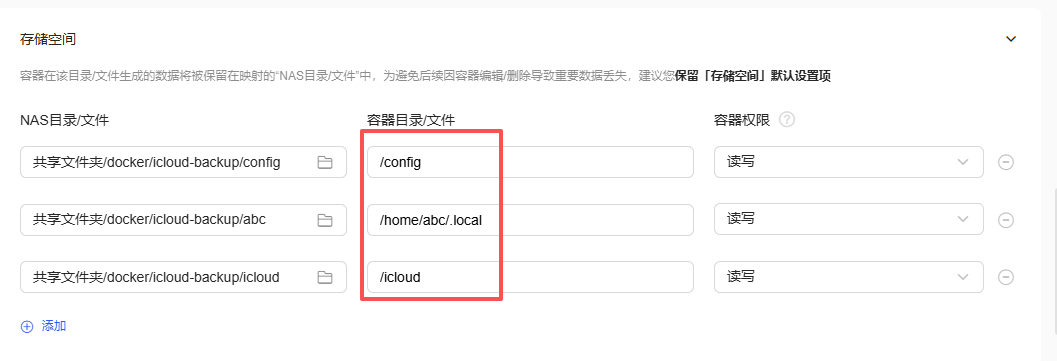
先下载“mandarons/icloud-drive”镜像,注意是“icloud-drive”,然后创建容器,分别映射“/config”、“/home/abc/.local”和“/icloud”到本地目录,然后添加一个“ENV_CONFIG_FILE_PATH=/config/config.yaml”的环境变量,开启容器自启,就可以创建容器,也不需要做端口映射,因为它没web ui,配置全靠config文件。
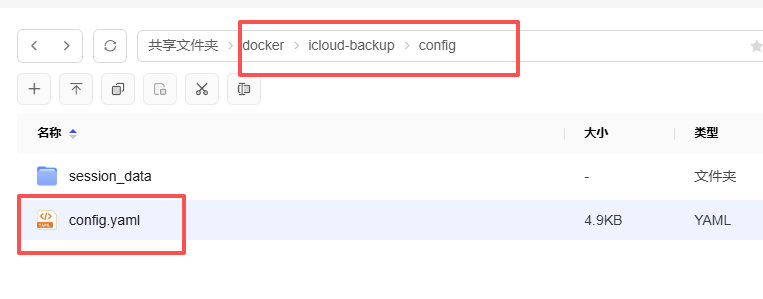
不过此时容器是无法启动的,因为没有配置文件,进入到本地nas刚刚映射的“/config”文件夹内,新建一个“config.ymal”文件,并把下面的配置代码粘贴到.ymal文件内,我这已经添加了部分中文注释,建议只修改“username”,也就是icloud用户名,其他的和我一样就行,如果是非中国区的苹果账户还需要“region”部分。这个项目是支持配置通知推送的,如果有需要自行配置对应推送功能,反正看注释就知道了,不懂就问ai。
app:
logger:
 # level - debug, info (default), warning or error
 level:"info"
 # log filename icloud.log (default)
 filename:"/config/icloud.log"
credentials:
 # iCloud drive username
 # iCloud用户名
 username:"please@replace.me"
 # Retry login interval - default is 10 minutes, specifying -1 will retry login only once and exit
 retry_login_interval:600
# Drive destination
root:"/icloud"
# 禁用匿名跟踪
usage_tracking:
 enabled:false
discord:
# webhook_url: <your server webhook URL here>
# username: icloud-docker #or any other name you prefer
telegram:
# bot_token: <your Telegram bot token>
# chat_id: <your Telegram user or chat ID>
pushover:
# user_key: <your Pushover user key>
# api_token: <your Pushover api token>
smtp:
 ## If you want to receive email notifications about expired/missing 2FA credentials then uncomment
 # email: "user@test.com"
 ## optional, to email address. Default is sender email.
 # to: "receiver@test.com"
 # password:
 # host: "smtp.test.com"
 # port: 587
 # If your email provider doesn't handle TLS
 # no_tls: true
# For China server users, set this to - china (default: global)
# 如果是苹果账号是非中国区,则改成global,如果是中国区的则改成china
region:china
# Maximum number of parallel download threads for both drive and photos
# auto: automatically set based on CPU cores (default, max 8)
# integer: specific number of threads (max 16)
# max_threads: auto
# max_threads: 4
notifications:
 # Sync summary notifications - sent after each sync cycle with statistics
 sync_summary:
  # Enable/disable sync summary notifications (default: false)
  enabled:false
  # Send notifications on successful syncs (default: true when enabled)
  on_success:true
  # Send notifications when errors occur during sync (default: true when enabled)
  on_error:true
  # Minimum number of downloads required to send notification (default: 1)
  # Set to 0 to always send notifications regardless of download count
  min_downloads:1
drive:
# 这里是配置备份icloud云盘
destination:"drive"
# Remove local files that are not present on server (i.e. files delete on server)
# 删除存在本地端但不存在云端的文件,这里false为不删除,这样就可以放心删除云端的文件
remove_obsolete:false
# 间隔多久备份一次,单位秒,这里就是300s
sync_interval:300
filters:# Optional - use it only if you want to download specific folders.
 # File filters to be included in syncing iCloud drive content
 # 这里是配置只下载特定的文件夹/文件后缀,我这全部文件都需要备份,就全部注释
 folders:
  #- "folder1"
  #- "folder2"
  #- "folder3"
 file_extensions:
  # File extensions to be included
  #- "pdf"
  #- "png"
  #- "jpg"
  #- "jpeg"
ignore:
 # When specifying folder paths, append it with /*
 # 这里是配置忽略备份某些文件夹,我也是全部注释掉
 #- "node_modules/*"
 #- "*.md"
photos:
# 这里是配置备份照片
destination:"photos"
# Remove local photos that are not present on server (i.e. photos delete on server)
# 删除存在本地端但不存在云端的文件,这里false为不删除,这样就可以放心删除云端的文件
remove_obsolete:false
# 间隔多久备份一次,单位秒,这里就是500s
sync_interval:500
# Optional, default false. If true preserve album structure. If same photo is in multiple albums creates duplicates on filesystem
# 是否保留相册结构,建议true开启,这样备份后相册结构和源数据保持一致
all_albums:true
# Optional, default false. If true and all_albums is true, create hard links for duplicate photos instead of separate copies. Saves storage space.
# 是否开启硬连接,如果有相同照片存在多个相册,开启后则不会多次下载,只会建立硬连接不用再次下载,省空间,但有些nas系统不支持这样,建议保持false关闭
use_hardlinks:false
folder_format:"%Y/%m"# optional, if set put photos in subfolders according to format. Format cheatsheet - https://strftime.org
filters:
 # List of libraries to download. If omitted (default), photos from all libraries (own and shared) are downloaded. If included, photos only
 # from the listed libraries are downloaded.
 # libraries:
 #  - PrimarySync # Name of the own library


 # if all_albums is false - albums list is used as filter-in, if all_albums is true - albums list is used as filter-out
 # if albums list is empty and all_albums is false download all photos to "all" folder. if empty and all_albums is true download all folders
 # 这里是配置只下载特定的相册,我这全部文件都需要备份,就全部注释
 albums:
  #- "album 1"
  #- "album2"
 # valid values are original, medium and/or thumb
 # 下载文件的清晰度,默认original也就是原图
 file_sizes:
   -"original"
  # - "medium"
  # - "thumb"
 extensions:# Optional, media extensions to be included in syncing iCloud Photos content
  # - jpg
  # - heic
  # - png
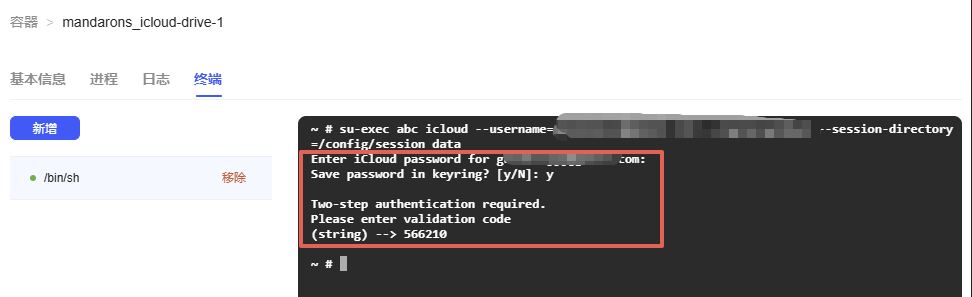
然后再次启动容器,此时会有一些报错,问题不大,因为还没配置icloud账户密码。进入到容器终端,输入以下命令配置账户密码,提醒下,是需要通过“/bin/sh”才能进入容器,而不是常规的“/bin/bash”:
su-exec abc icloud --username=<icloud_username> --region=china --session-directory=/config/session_data
#username就是苹果账户名称
#region如果是国区账户就是china,其他区域则不加--region参数
#注意,非国区账号一定不能加--region参数
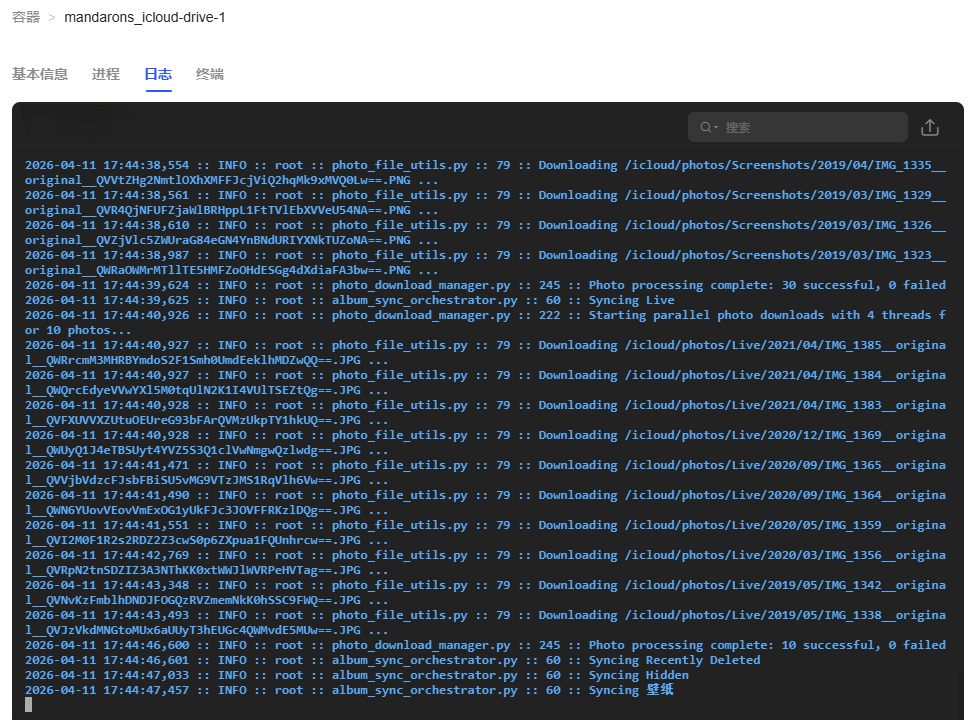
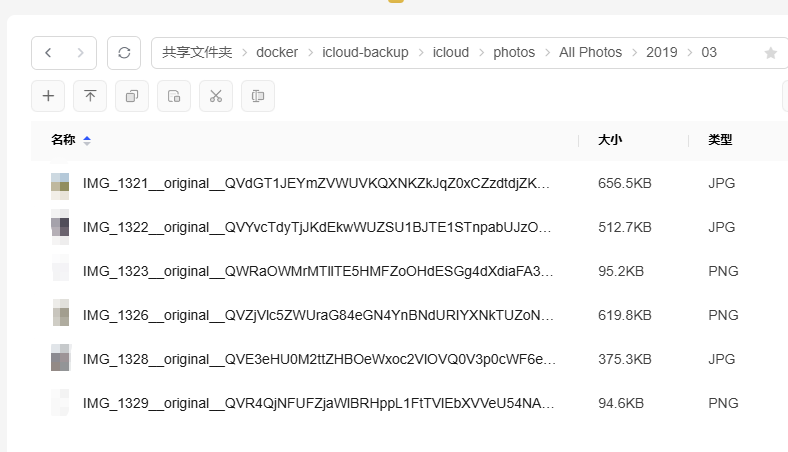
最后,再重启下容器,就可以看到已经在从icloud下载文件了,nas内也可以看到对应文件。
关注我第一时间学习新技术